
How to Scan Sheet Music to PDF on iPhone Using Notes
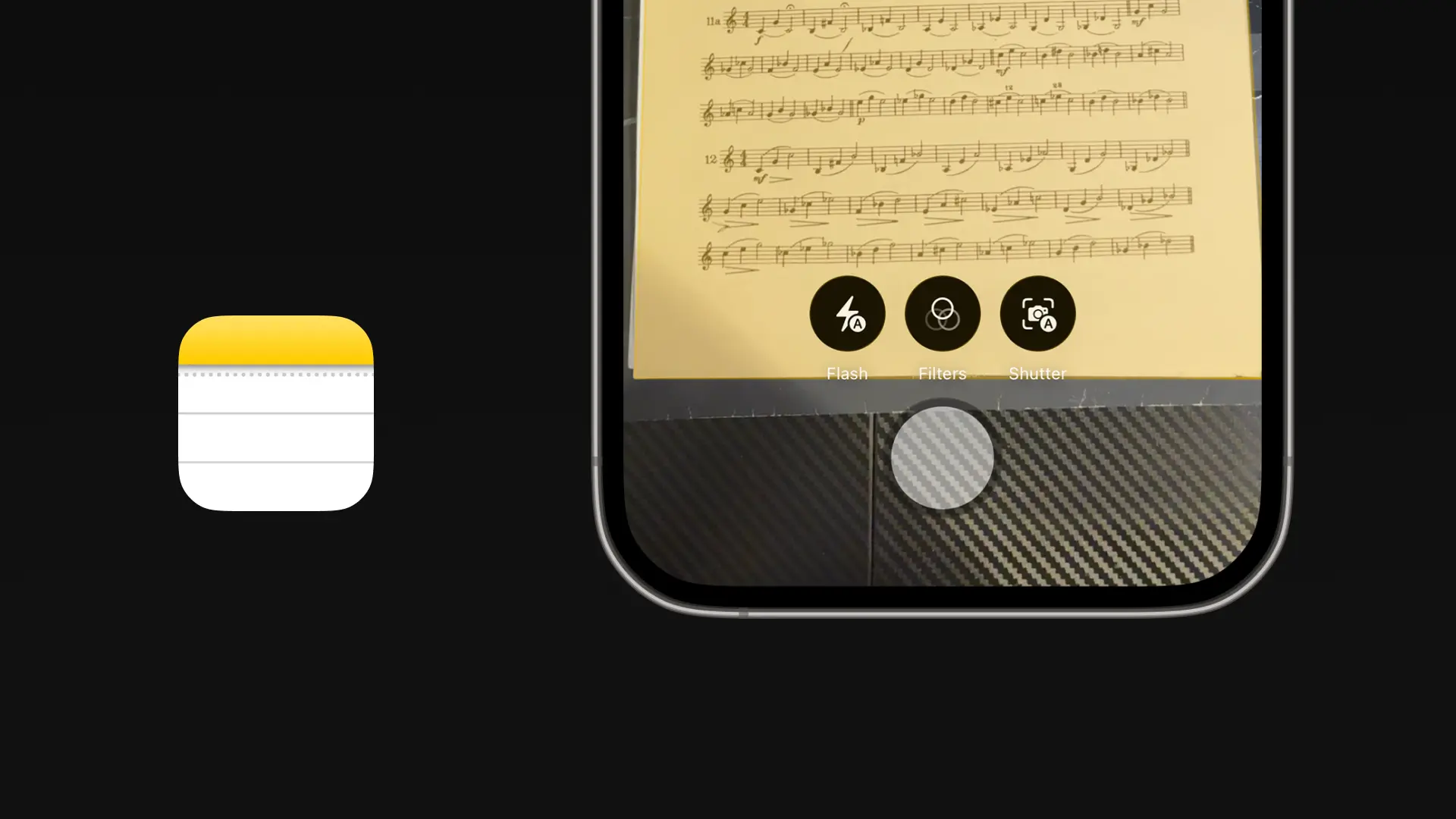
Do you have printed sheet music that you want to keep on your phone?
You do not need a separate scanning app. Your iPhone can turn paper sheet music into a clean, multi-page PDF using the built-in Notes app.
Once your score is saved as a PDF, you can attach it to a material in PracticePal. This keeps the music you are practicing alongside its tempo goals, notes, recordings, and practice history.
Here is how to do it.
What You Need
- iPhone
- The printed sheet music
- A flat surface
- Bright, even lighting
- The Notes app
How to Scan Sheet Music With the iPhone Notes App
1. Open the Notes App
Open Notes on your iPhone.
Create a new note or open an existing note where you want to keep the scanned music. Giving the note the same name as the piece can make it easier to find later.
For example:
Mozart Clarinet Concerto — First Movement
2. Select Scan Documents
Inside the note, tap the Attachment button.
Select Scan Documents.
Your iPhone camera will open in document-scanning mode.
3. Position the Sheet Music
Place the first page on a flat surface.
Hold your iPhone directly above the page and try to keep it parallel with the paper. Avoid tilting the phone because this can make staff lines and notes appear distorted.
Your iPhone will detect the edges of the page. In automatic mode, it may capture the page for you. You can also use the shutter button or a volume button to take the scan manually.
4. Check the Page Edges
After capturing a page, check that the crop includes all of the music. Drag the corners if the automatic crop removed part of the music.
5. Add the Remaining Pages
Position the next page under the camera and repeat the process until every page has been added. The Notes app keeps the pages together as one document, so you do not need to create a separate file for every page.
When you finish, tap the check icon on the top right.
How to Save the Scan as a PDF
The scanned document inside Notes is handled as a PDF.
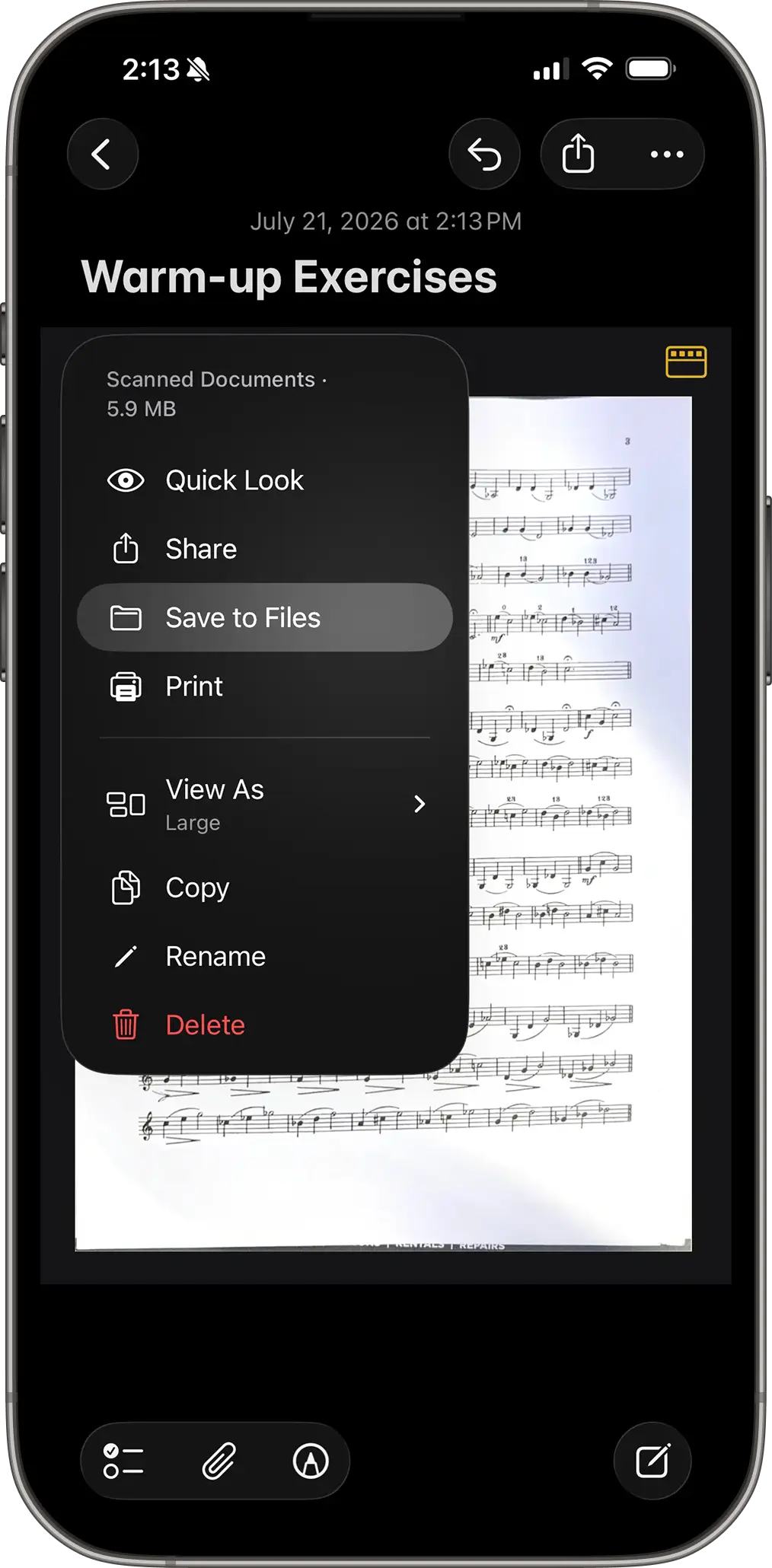
To save the scan to Files:
- Open the note containing your scan.
- Tap the scanned document.
- Select Save to Files
- Choose a folder on your iPhone or in iCloud Drive.
- Give the PDF a clear name.
- Tap Save
How to Import the PDF Into PracticePal
After saving the PDF, you can connect it to the Material you are practicing.
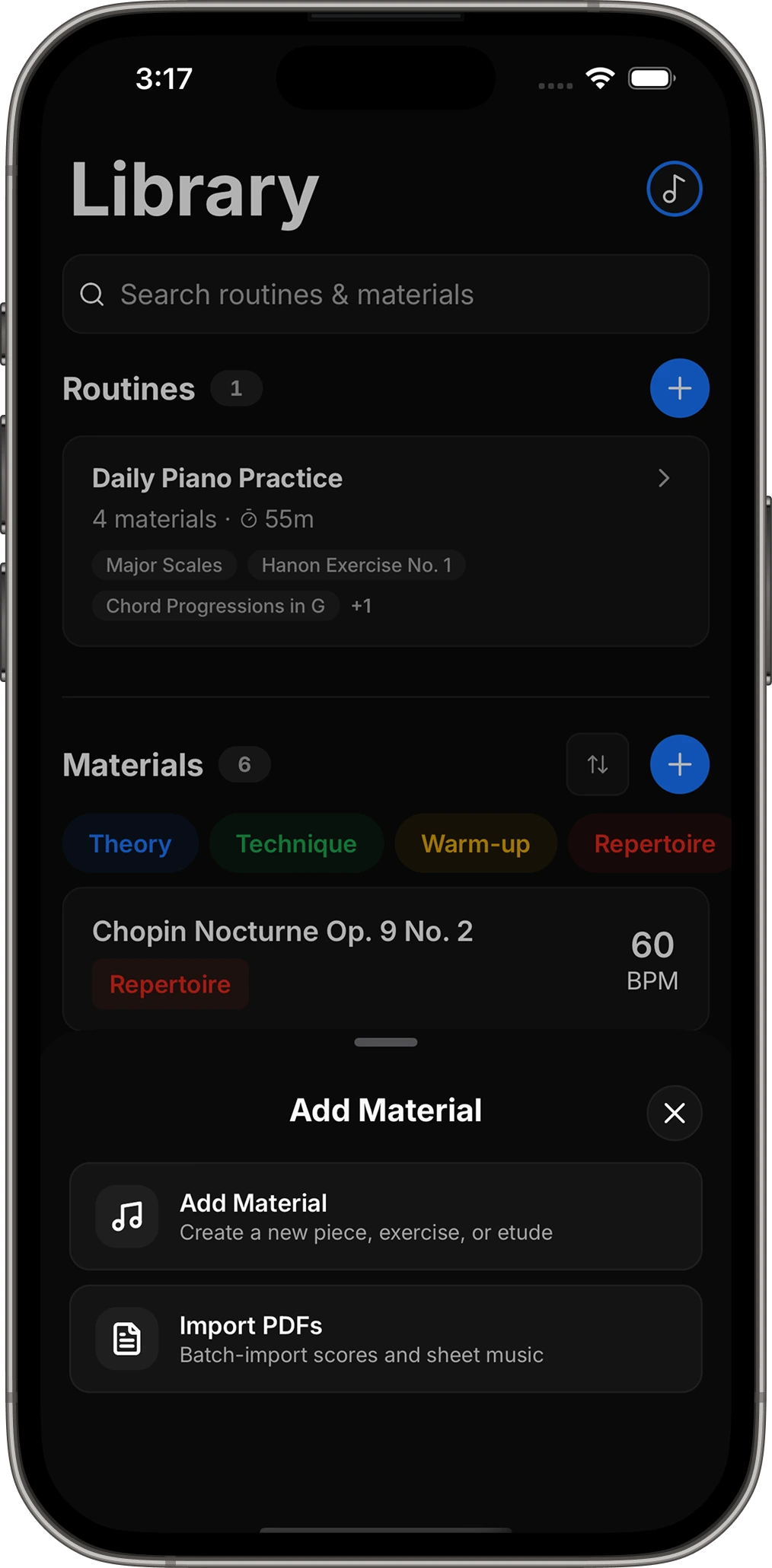
Open PracticePal and go to your Library. Press the "+" button in the Materials section, then press on the Import PDFs option and select the PDF you just scanned.
You can then keep the score alongside useful practice information such as:
- Current and target BPM
- Session notes
- Recordings
- Practice time
- Goals
Instead of searching through notes or folders before every session, you can open the material you are practicing and access its score from the same place.
A Better Way to Organize Your Practice Music
Scanning sheet music is useful, but the file becomes more valuable when it is connected to your practice.
By attaching the PDF to a Material in PracticePal, you can keep the score together with the goals and information that help you improve. You can open the Material, start a practice session, create notes and recordings, and review your progress without switching between several apps.
The next time your teacher hands you a printed exercise or you receive a paper part for an ensemble, scan it before it gets lost in your folder.
Your iPhone already has everything you need.
Copyright reminder: Only scan, store, and share sheet music that you own or have permission to copy.
FAQ
Frequently asked questions
PracticePal AI is a practice planning and progress-tracking app for musicians. It brings your routines, materials, metronome, goals, notes, recordings, and practice history together, with AI guidance available when you need help.
PracticePal supports more than 30 instruments across strings, brass, woodwinds, keys, voice, and percussion, with more being added over time.
Yes. Create a separate practice profile for each instrument or goal. Every profile keeps its own library, routines, progress, streaks, journal, and settings.